
ADAPTATEUR BLUETOOTH™ POUR IMPRIMANTE USB #F8T031EA - Bluetooth Adapter BELKIN - Free user manual and instructions
Find the device manual for free ADAPTATEUR BLUETOOTH™ POUR IMPRIMANTE USB #F8T031EA BELKIN in PDF.


User questions about ADAPTATEUR BLUETOOTH™ POUR IMPRIMANTE USB #F8T031EA BELKIN
0 question about this device. Answer the ones you know or ask your own.
Ask a new question about this device
Download the instructions for your Bluetooth Adapter in PDF format for free! Find your manual ADAPTATEUR BLUETOOTH™ POUR IMPRIMANTE USB #F8T031EA - BELKIN and take your electronic device back in hand. On this page are published all the documents necessary for the use of your device. ADAPTATEUR BLUETOOTH™ POUR IMPRIMANTE USB #F8T031EA by BELKIN.
USER MANUAL ADAPTATEUR BLUETOOTH™ POUR IMPRIMANTE USB #F8T031EA BELKIN
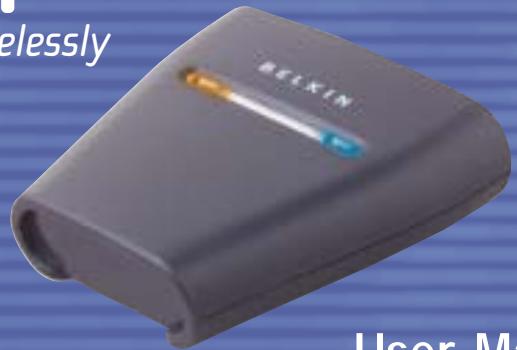
Bluetooth™ USB Printer Adapter
Connect to your USB printer wirelessly from your PDA or notebook
Connect to your USB printer wirelessly from your PDA or notebook
Bluetooth
User Manual F8T031
TABLE OF CONTENTS
Introduction 2
Overview
Product Features 3
System Requirements 4
Package Contents. 4
Supported Profiles 5
Specifications 6
Hardware Installation 8
PDA Setup 15
FAQs 22
Information 24
INTRODUCTION
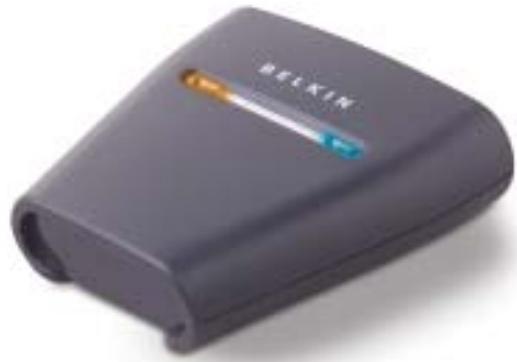
Congratulations and thank you for purchasing the Bluetooth USB Printer Adapter from Belkin. This breakthrough Adapter adds Bluetooth technology to your existing USB printer, allowing it to connect with all devices enabled with Bluetooth v1.1 technology. Wirelessly print from your PDA, desktop, or laptop computer via Bluetooth technology. Please be sure to review this User Manual carefully to ensure that you take advantage of all the features and capabilities of your new Bluetooth USB Printer Adapter.
OVERVIEW
Product Features
The Bluetooth USB Printer Adapter is compliant with Bluetooth standard version 1.1 and provides:
- Compliance with Bluetooth specification v1.1 devices
- Support of USB 1.1-compliant printers*
- Operating distance of up to 100 meters
- Compact design
- Support for data rates up to 721Kbps
- Hardcopy Cable Replacement and Serial Port Profiles
*Multifunctional printers will not operate when used with this Adapter
OVERVIEW
System Requirements
- PDA or PC enabled with Bluetooth technology
- Serial Port or Hardcopy Cable Replacement Profile support
- USB v1.1-compliant printer
Package Contents
- Bluetooth USB Printer Adapter
- User Manual
- Quick Installation Guide
- Registration Card
OVERVIEW
Supported Profiles
The services supported by your Bluetooth USB Printer Adapter are defined as "Profiles". Available Profiles include:
- Generic Access
Service Discovery - Serial Port
- Hardcopy Cable Replacement
OVERVIEW
Specifications
Bluetooth Compliance
Version 1.1
Compatible to Bluetooth SPP and HCRP Profile
Physical Interface:
USB v1.1-compliant, A-type
Operating Frequency:
2.4 to 2.4835GHz
Output Power:
Class I (0-20 dBm) RF 723/56Kbps
Operation Range:
100m (333 ft.) radius indoors
Antenna:
Integrated
LED:
Bluetooth Activity, USB Status
Dimensions: 81 (W) x 81 (L) x 26mm (H)
Weight: 108g
Operating Temp: 0 to 50 degrees Celsius
Storage Temp: 10 to 70 degrees Celsius
Humidity: 5-90% non-condensing
Supported Profiles: GAP, SDP, HCRP, Serial
Specifications subject to change without notice.
OVERVIEW
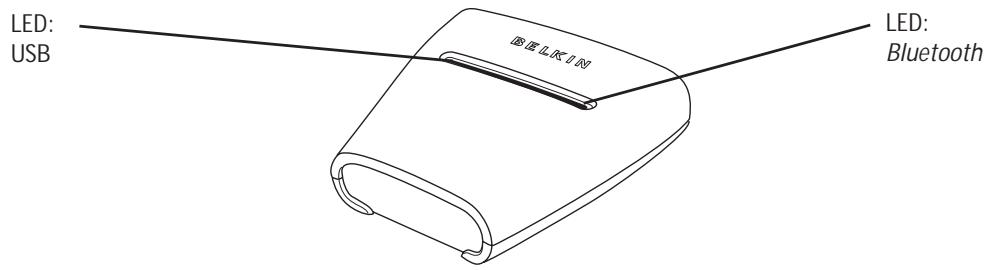
LEDS
Bluetooth LED (Blue)
On/Blinking: Bluetooth device is connected to the Adapter
Off: No Bluetooth devices are connected to the Adapter
USB LED (Amber)
Fast Blinking: No printer detected
Slow Blinking: Printer detected
HARDWARE INSTALLATION
Installing the USB Printer
Please do not connect any devices other than a USB printer directly to the USB port of the Adapter.
- With the printer powered off, connect one end of a standard USB cable to the USB B-type connector of your USB printer and connect the other end to the USB type A printer connector on the Adapter.
Note: You must have the printer driver installed in each computer you wish to print from prior to use. Go to the Control Panel in Windows and open the "Printers" folder. Select "Add a Printer" and choose a "Local Printer" (not network printer or USB printer). Then select the "Bluetooth Port" as its' port.
- Connect the included power adapter into an available power outlet. Attach the barrel plug into the power jack of the Adapter. You should see the Bluetooth and USB LED blink rapidly for three seconds and then the USB (Amber) LED will remain blinking.
- Power on the connected USB printer.
Your Bluetooth USB Printer Adapter is now installed and ready for use.
HARDWARE INSTALLATION
Connecting Via Serial Port Profile
The method of connecting to the printer described below is for use of the Serial Port Profile. For example, using the Bluetooth PC Card (part number F8T002), or the Bluetooth USB Adapter (part number F8T001 or F8T003) from Belkin on Windows or devices that use WIDCOMM BTW software.
- Double-click on the Bluetooth icon on your desktop.
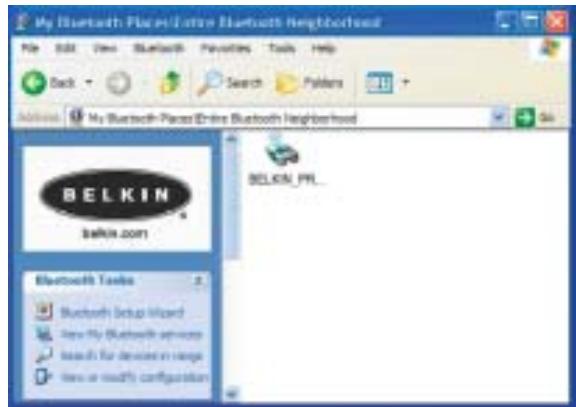
- Choose Bluetooth from the menu bar. Click "Search for devices". The "Belkin USB Printer" icon should appear.
- Double-click on the icon. You should see "Discovering Services". Icons will appear symbolizing the services your device offers.
HARDWARE INSTALLATION
- Double-click on the "Virtual Printer" icon.
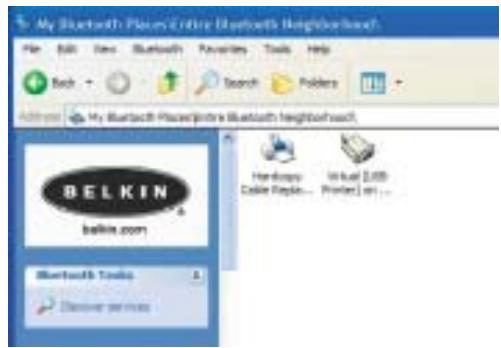
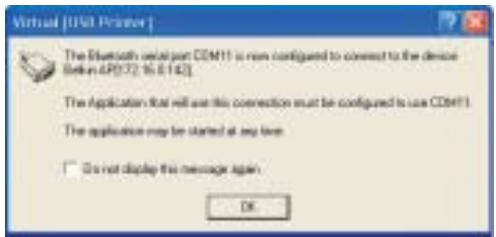
- A connection via Serial Port Profile over the virtual COM port will be created. This is usually "COM3" or "COM4" but can be configured to another port. Make note of the COM port for your specific application.
- Go to Control Panel in Windows and open the "Printers" folder.
HARDWARE INSTALLATION
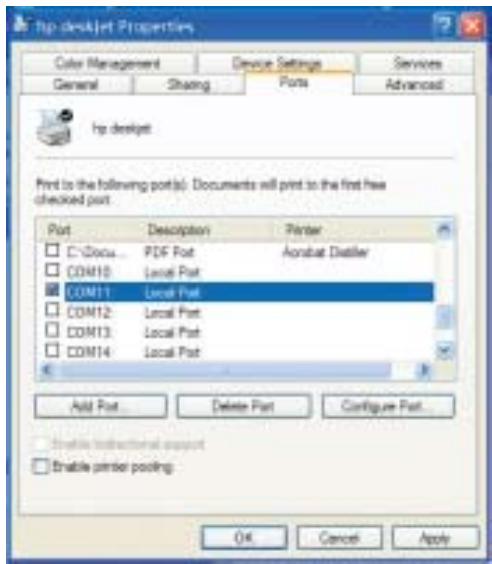
- Right-click on the printer you pre-installed and choose "Properties".
- Select the "Ports" tab.
- Under the "Ports" section, select the printer for the virtual COM port created in step 5.
You are now ready to print via Bluetooth technology to your USB printer.
Note: Each time you would like to print via the printer connected to the Adapter, you will have to double-click on the "Virtual [USB Printer]" icon first to make a connection, unless you set the printer you created above to be your default printer. In that case, the PC stack will automatically send the print job via virtual COM port.
HARDWARE INSTALLATION
Connecting Via Hardcopy Replacement Profile
The method of connecting to the printer described below is for use of the Hardcopy Replacement Profile. For example, using the Bluetooth PC Card (part number F8T002), or the Bluetooth USB Adapter (part number F8T001 or F8T003) from Belkin on
Windows or devices that use WIDCOMM
BTW software.
- Double-click on the Bluetooth icon on your desktop.
- Choose "Bluetooth" from the menu bar. Click "Search for devices". The "Belkin USB Printer" icon should appear.
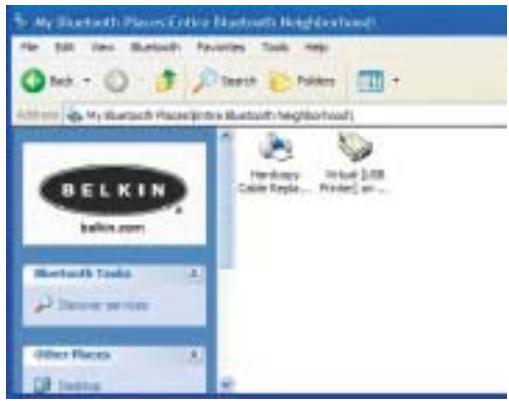
- Double-click on the icon. You should see "Discovering Services". Icons will appear symbolizing the services your device offers.
HARDWARE INSTALLATION
- Double-click on the "Hardcopy Cable Replacement" icon.
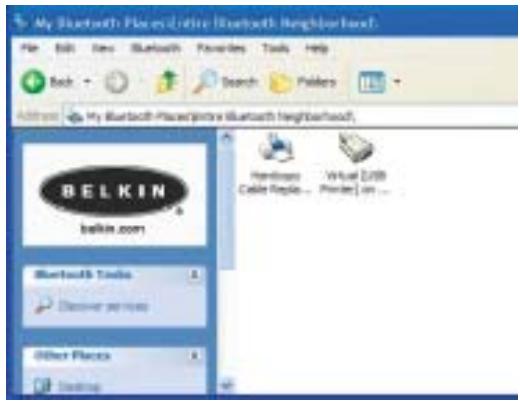
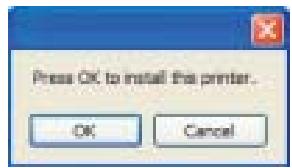
- You will be prompted to add a printer. Click "OK".
HARDWARE INSTALLATION
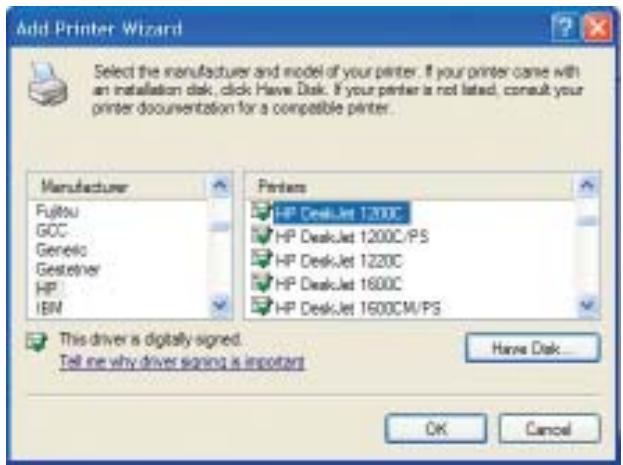
- The "Add Printer Wizard" will appear. Select the printer from the list or browse for the printer connected to your Adapter.
- Follow the wizard to complete the printer installation.
PDA SETUP
PrintBoy Installation Instructions for Pocket PC and Palm OS
Before you begin:
To print using a Bluetooth connection you will need:
- A Palm OS handheld with Bluetooth support (present in most handhelds running Palm OS 4.0 or later)
- A Pocket PC device enabled with Bluetooth wireless technology running Microsoft Pocket PC 2002 or 2003
A USB printer - A Bluetooth Wireless USB Printer Adapter from Belkin
PDA SETUP
Installing PrintBoy on a Pocket PC
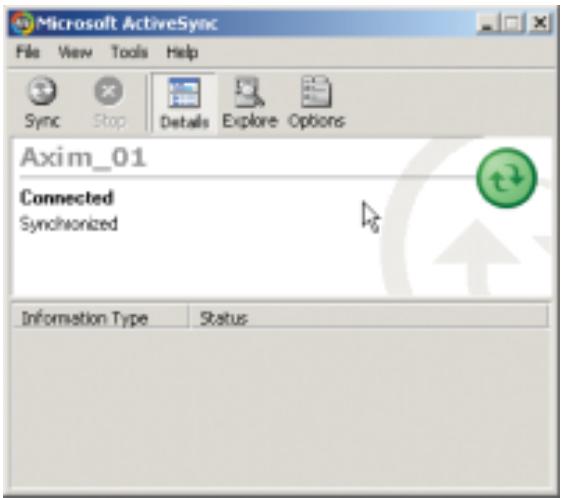
- Open Microsoft ActiveSync and create an ActiveSync connection between your computer and Pocket PC device.
PDA SETUP
- Run the setup program (PrintBoySetup.exe) from the Pocket PC directory of the included CD-ROM and click "Yes" to install the utility.
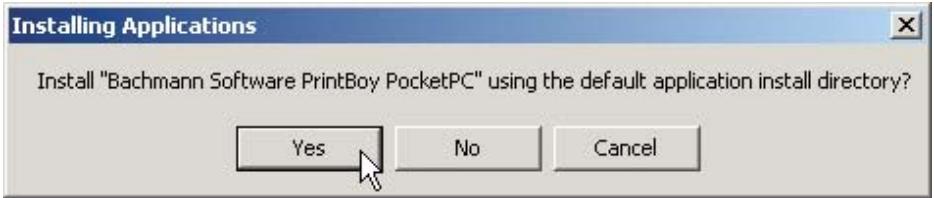
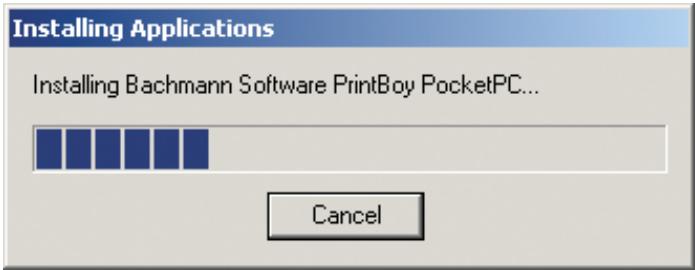
- The Installation Wizard will begin to load the Utility to your Pocket PC.
PDA SETUP
- Click "OK" to complete the installation process.

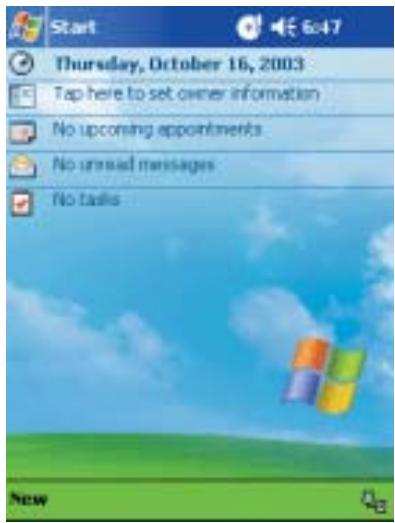
PrintBoy is now installed on your Pocket PC. Go to the Today screen and tap on the Start menu.
Tap on the PrintBoy application icon to launch the Utility and configure your printer.
Refer to the PrintBoy Utility Setup Guide on the included CD for additional configuration information.
PDA SETUP
Installing PrintBoy on a Palm™ Device:
PrintBoy is easy to install. Choose your personal computer operating system below and follow the instructions:
For Microsoft Windows:
- Insert the CD into your PC.
- Run the setup program (PrintBoySetup.exe) from the Palm directory.
- Follow the step-by-step instructions on your computer screen from the PrintBoy installation program. This simple process will queue all the necessary PrintBoy files to be automatically added to your Palm device during the next HotSync® operation.
- Perform a HotSync function. This will copy all the necessary files onto your Palm handheld.
PDA SETUP
For Macintosh® Computers:
- Extract the PrintBoy program components from the "PrintBoy.SIT" file.
- Locate the folder where you extracted the program files and documentation.
-
Add the following files to the Palm Install Tool:
-
PBAccess.prc
- PBMemo.prc
- PBMail.prc
- PBDate.prc
- PBDB.prc
- PBGDBDr.prc
- PBToDo.prc
-
PBClip.prc
-
PBDoc.prc
- PBSpread.prc
- PBSToGoDr.prc
- PBQsDr.prc
PBPres.prc - PBPStgDr.prc
- PBPQpDr.prc
-
PBShell.prc
-
PBDiscovery.prc
- PrintMgr.prc
PageMgr.prc - IrMgr.prc
- BPMConfig.prc
- BSSFontDB.pdb
Also add any printer drivers you will need (all printer drivers begin with the prefix "BPM", for example BPMCanon.prc).
PDA SETUP
- Perform a HotSync function. This will copy all the necessary files onto your Palm device.
PrintBoy is now installed on your Palm handheld. If you tap on the Applications icon, Main icon, or Unfiled icon, you should see the PrintBoy Shell application in the Launcher on your main Palm screen, as shown below:
Refer to the PrintBoy Utility Setup Guide on the included CD for additional configuration information.
FAQs
Which Bluetooth Profiles does the USB Printer Adapter support?
The Adapter supports the Serial Port Profile and the Hardcopy Replacement Profile.
Can I connect multiple Bluetooth devices to the Adapter?
Yes, you may. Every time a print job is sent, your computing device will create a connection with the Adapter. Once the print job is complete, your computing device will disconnect and make the Adapter available for other devices to use.
My Printer Status Monitor Utility indicates that there is no connection with the printer. Is my Adapter functioning properly?
Because the Adapter disconnects after every print job to make itself available to other devices, there is no constant communication between your Adapter and your computing device. This may conflict with some printer monitor utilities. We recommend that you disable any printer monitor utilities for your printer or disable bidirectional support for the connected printer.
FAQs
Does the Adapter support multifunctional printers?
We recommend that you do not use multifunctional printers that support other non-printing functions. The Adapter only supports printing via Bluetooth. Other functions like scanning will not work through the Adapter.
Can I print from my Pocket PC or Palm™ handheld enabled with Bluetooth technology?
Yes, you can. You will need to install a print utility on your PDA first. For example, "PrintPocketCE" for Pocket PCs from Field Software or "PrintBoy" for Palm OS® by Pearson Software.
INFORMATION
DECLARATION OF CONFORMITY WITH FCC RULES FOR ELECTROMAGNETIC COMPATIBILITY
We, Belkin Corporation, of 501 West Walnut Street, Compton, CA 90220, declare under our sole responsibility that the product,
F8T031
to which this declaration relates, complies with Part 15 of the FCC Rules. Operation is subject to the following two conditions: (1) this device may not cause harmful interference, and (2) this device must accept any interference received, including interference that may cause undesired operation.
Caution: Exposure to Radio Frequency Radiation.
The radiated output power of this device is far below the FCC radio frequency exposure limits. Nevertheless, the device shall be used in such manner that the potential for human contact normal operation is minimized.
When connecting an external antenna to the device, the antenna shall be placed in such a manner to minimize the potential for human contact during normal operation. In order to avoid the possibility of exceeding the FCC radio frequency exposure limits, human proximity to the antenna shall not be less than 20cm (8 inches) during normal operation.
Federal Communications Commission Notice
This equipment has been tested and found to comply with the limits for a Class B digital device, pursuant to Part 15 of the FCC Rules. These limits are designed to provide reasonable protection against harmful interference in a residential installation.
INFORMATION
This equipment generates, uses, and can radiate radio frequency energy. If not installed and used in accordance with the instructions, it may cause harmful interference to radio or television reception, which can be determined by turning the equipment off and on, the user is encouraged to try and correct the interference by one or more of the following measures:
- Reorient or relocate the receiving antenna.
- Increase the distance between the equipment and the receiver.
- Connect the equipment to an outlet on a circuit different from that to which the receiver is connected.
- Consult the dealer or an experienced radio/TV technician for help.
Modifications
The FCC requires the user to be notified that any changes or modifications to this device that are not expressly approved by Belkin Corporation may void the users authority to operate the equipment.
Canada-Industry Canada (IC)
The wireless radio of this device complies with RSS 139 & RSS 210 Industry Canada. This Class B digital complies with Canadian ICES-003.
Radio products with the CE 0560 or CE alert marking comply with the R&TTE Directive (1995/5/EC) issued by the Commission of the European Community.

INFORMATION
Compliance with this directive implies conformity to the following European Norms (in brackets are the equivalent international standards).
- EN 60950 (IEC60950) - Product Safety
- EN 300 328 Technical requirement for radio equipment
- ETS 300 826 General EMC requirements for radio equipment.
To determine the type of transmitter, check the identification label on your Belkin product.
Products with the CE marking comply with the EMC Directive (89/336/EEC) and the Low Voltage Directive (72/23/EEC) issued by the Commission of the European Community. Compliance with these directives implies conformity to the following European Norms (in brackets are the equivalent international standards).
EN 55022 (CISPR 22) - Electromagnetic Interference
EN 55024 (IEC61000-4-2,3,4,5,6,8,11)-Electromagnetic Immunity
- EN 61000-3-2 (IEC610000-3-2) - Power Line Harmonics
- EN 61000-3-3 (IEC610000) - Power Line Flicker
- EN 60950 (IEC60950) - Product Safety
Products that contain the radio transmitter are labeled with the CE 0560 or CE alert marking and may also carry the CE logo.
CE 0560①

INFORMATION
Belkin Corporation Limited Two-Year Product Warranty
Belkin Corporation warrants this product against defects in materials and workmanship for its warranty period. If a defect is discovered, Belkin will, at its option, repair or replace the product at no charge provided it is returned during the warranty period, with transportation charges prepaid, to the authorized Belkin dealer from whom you purchased the product. Proof of purchase may be required.
This warranty does not apply if the product has been damaged by accident, abuse, misuse, or misapplication; if the product has been modified without the written permission of Belkin; or if any Belkin serial number has been removed or defaced.
THE WARRANTY AND REMEDIES SET FORTH ABOVE ARE EXCLUSIVE IN LIEU OF ALL OTHERS, WHETHER ORAL OR WRITTEN, EXPRESSED OR IMPLIED. BELKIN SPECIFICALLY DISCLAIMS ANY AND ALL IMPLIED WARRANTYES, INCLUDING, WITHOUT LIMITATION, WARRANTY OF MERCHANTABILITY AND FITNESS FOR A PARTICULAR PURPOSE.
No Belkin dealer, agent, or employee is authorized to make any modification, extension, or addition to this warranty. BELKIN IS NOT RESPONSIBLE FOR SPECIAL, INCIDENTAL, OR CONSEQUENTIAL DAMAGES RESULTING FROM ANY BREACH OF WARRANTY, OR UNDER ANY OTHER LEGAL THEORY, INCLUDING BUT NOT LIMITED TO, LOST PROFITS, DOWNTIME, GOODWILL, DAMAGE TO OR REPROGRAMMING OR REPRODUCING ANY PROGRAM OR DATA STORED IN, OR USED WITH, BELKIN PRODUCTS.
Some states do not allow the exclusion or limitation of incidental or consequential damages or exclusions of implied warranties, so the above limitations of exclusions may not apply to you. This warranty gives you specific legal rights, and you may also have other rights that vary from state to state.
BELKIN
belkin.com
Belkin Corporation
501 West Walnut Street
Compton · CA · 90220 · USA
Tel: 310.898.1100
Fax: 310.898.1111
Belkin Components, Ltd.
Express Business Park • Shipton Way
Rushden · NN10 6GL · United Kingdom
Tel: +44 (0) 1933 35 2000
Fax: +44 (0) 1933 31 2000
Belkin Components B.V.
Starparc Building • Boeing Avenue 333
1119 PH Schiphol-Rijk · The Netherlands
Tel: +31 (0) 20 654 7300
Fax: +31 (0) 20 654 7349
Belkin GmbH
Hanebergstrasse 2
80637 Munchen - Germany
Tel: +49 (0) 89 143 4050
Fax: +49 (0) 89 143 405100
Belkin Tech Support
US:310.898.1100ext.2263
800.223.5546 ext. 2263
Europe: 00 800 223 55 460
Australia: 1800 666 040
P74376
© 2003 Belkin Corporation. All rights reserved. All trade names are registered trademarks of respective manufacturers listed. The Bluetooth name and the Bluetooth trademarks are owned by Bluetooth SIG, Inc., and are used by Belkin Corporation under license.
BELKIN
Specifications techniques 6
Faire aux questions. 22
Informations 24
INTRODUCTION
Specifications techniques
INSTALLATION POUR PDA
INSTALLATION POUR PDA
INSTALLATION POUR PDA
INSTALLATION POUR PDA
INSTALLATION POUR PDA
INSTALLATION POUR PDA
INSTALLATION POUR PDA
Canada - Industry Canada (IC)
La radio sans fil de cet appeareil est conforme aux normes RSS 139 & RSS 210 Industry Canada.
501 West Walnut Street
Belkin Components, Ltd.
Express Business Park • Shipton Way
Support technique Belkin
Macintosh®-Computer:
501 West Walnut Street
Compton · CA · 90220 · USA
Tel: 310.898.1100
Fax: 310.898.1111
Belkin Components, Ltd.
Express Business Park • Shipton Way
Rushden · NN10 6GL · GroBbritannien
Tel: +44 (0) 1933 35 2000
Fax: +44 (0) 1933 31 2000
Belkin Components B.V.
Starparc Building • Boeing Avenue 333
1119 PH Schiphol-Rijk · Niederlande
Tel: +31 (0) 20 654 7300
Fax: +31 (0) 20654 7349
Belkin GmbH
Hanebergstrasse 2
Canada - Industry Canada (IC)
501 West Walnut Street
Compton · CA · 90220 · USA
Tel: 310.898.1100
Fax: 310.898.1111
Belkin Components, Ltd.
Express Business Park • Shipton Way
501 West Walnut Street
Belkin Components, Ltd.
Express Business Park • Shipton Way
Rushden · NN10 6GL · Reino Unido
Tel.: +44 (0) 1933 35 2000
Fax: +44 (0) 1933 31 2000
Belkin Components B.V.
Starparc Building • Boeing Avenue 333
1119 PH Schiphol-Rijk · Holanda
Tel.: +31 (0) 20 654 7300
Fax: +31 (0) 20654 7349
BelkinGmbH
Hanebergstrasse 2
Per computer Macintosh®:
Canada- Industry Canada (IC)
501 West Walnut Street
Compton · CA · 90220 · USA
Tel: 310.898.1100
Fax: 310.898.1111
Belkin Components, Ltd.
Express Business Park • Shipton Way
Rushden · NN10 6GL · United Kingdom
Tel: +44 (0) 1933 35 2000
Fax: +44 (0) 1933 31 2000
Belkin Components B.V.
Starparc Building • Boeing Avenue 333
1119 PH Schiphol-Rijk · The Netherlands
Tel: +31 (0) 20 654 7300
Fax: +31 (0) 20 654 7349
Belkin GmbH
Hanebergstrasse 2
80637 Munchen - Germany
Tel: +49 (0) 89 143 4050
Fax: +49 (0) 89 143 405100
501 West Walnut Street
Compton ^ 念 CA ^ 念 90220 · USA
Tel: 310.898.1100
Fax: 310.898.1111
Belkin Components, Ltd.
Express Business Park • Shipton Way
Rushden · NN10 6GL · United Kingdom
Tel: +44 (0) 1933 35 2000
Fax: +44 (0) 1933 31 2000
Belkin Components B.V.
Starparc Building • Boeing Avenue 333
1119 PH Schiphol-Rijk · The Netherlands
Tel: +31 (0) 20 654 7300
Fax: +31 (0) 20 654 7349
Belkin GmbH
Hanebergstrasse 2
80637 München - Germany
Tel: +49 (0) 89 143 4050
Fax: +49 (0) 89 143 405100
Belkin Tech Support
US: 310.898.1100 ext. 2263
800.223.5546 ext. 2263
Europe: 00 800 223 55 460
Australia: 1800 666 040
P74376ea
© 2003 Belkin Corporation. All rights reserved. All trade names are registered trademarks of respective manufacturers listed. The Bluetooth name and the Bluetooth trademarks are owned by Bluetooth SIG, Inc., and are used by Belkin Corporation under license.